INSTANT MESSAGING INSTRUCTIONS
SYSTEM REQUIREMENTS:
- Latest version of the Adobe Flash player. If you are reading these instructions you already have it. If anyone you're attempting to chat with is having trouble with the Instant Messaging feature, they should go to www.adobe.com and upgrade to the latest version of the Flash player.
- Latest version of your web browser. Instant Messaging will not work with Internet Explorer 6 or below. If you have this browser please update to the latest version.
- Screen resolution: Minimum 1024 x 760. Recommended horizontal resolution: 1280 pixels wide or wider.
If you are unable to meet any of these system requirements you can permanently disable the Instant Messaging feature under your Edit Profile page.
SENDING INSTANT MESSAGES:
The Members Online panel is positioned to the lower right of the web site. It can be expanded by clicking anywhere in the title (top bar) area. Clicking the title area again will minimize the window. To chat privately with a fellow member simply click his or her name in the Members panel. Each Member's name you click on will spawn a private messaging window as seen below. You can open up to 4 private messaging windows at any 1 time.
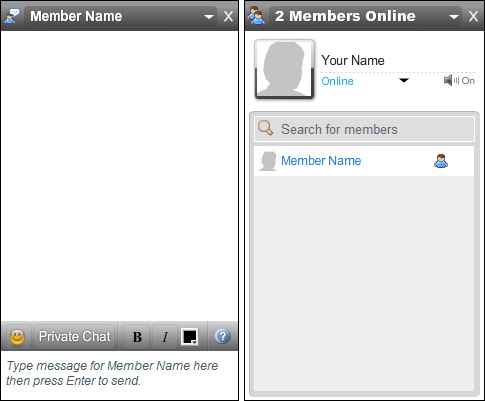
Chatting with another member is simple: Click your mouse anywhere in the bottom region of the window to enter your message then press your <Enter> key to send the message. That's all there is to it — you can now easily chat with fellow members as you browse the site. There are a few additional things you should know:
SCREEN RESOLUTION: For best results use a screen resolution with width of 1280 pixels or greater. Any of today's wide screen monitors will have at least a 1280 resolution. At this size the Members panel will never cover any site content. If you are using a smaller screen resolution the Members panel will cover site content, but it can be easily minimized or closed completely by clicking the X in the upper right corner.
YOUR PHOTO: Your "Master Photo" is displayed at the top of the Members panel. All messages in the chat window are also preceded by your Master Photo. If you have no Master Photo you will see a default image. Your Master Photo cannot be set from within the Instant Messaging interface. To set your Master Photo click on the Edit/Upload Photos link on the web site and follow the directions on screen.
SEARCH FOR MEMBERS: If there are many members logged in at the same time, you can quickly search for members by clicking "Search for members" in the Members Panel and entering the first few letters of the member's name.
SOUNDS: A sound will be heard whenever a new member logs into the web site. Another sound will be heard every time a member sends you an instant message through the web site. Sounds can be disabled by clicking the speaker icon in the Members panel.
ICONS: To the right of each member's name you might see any of the following icons:
 Online
 Has
not typed anything for 5 or more minutes
Has
not typed anything for 5 or more minutes
Should you forget what the icons mean, hover your mouse pointer over them and the member's status will expand like this:


 Member
is currently typing.
Member
is currently typing.
TIP: Hovering over a member's name will pop up a window allowing you to quickly jump to the member's Profile page.
TOOL BAR: The icons on the tool bar allow you to insert emoticons, bold and/or italicize your text, change font color, and quickly jump to these help instructions. You can also start a Private Chat session.
PRIVATE CHAT: Clicking the "Private Chat" button in the tool bar allows you to jump to a larger private chat environment that allows the sharing of photos, webcam feeds, and YouTube videos. You can also invite additional members to the private chat. You can start as many Private Chat sessions as you'd like (as long as you can keep up)!
CHANGING YOUR STATUS: At times you may not wish for members to see you online. In the Members Panel you can change your status to any of the following:
| Online: | You are currently available and accepting Instant Messages. | |
| Away: | You are online, but not currently at your computer. | |
| Do Not Disturb: | You are online but wish to block incoming Instant Messages. |
DISABLING INSTANT MESSAGING: If you wish to completely turn off the Instant Messaging feature you can do so by clicking on the Edit Profile link and deselecting "Allow other members to send me Instant Messages through the web site." If you disable the Instant Messaging feature your status will automatically be set to Invisible, no other members will see you online, and you will also no longer see any other members currently logged into the web site.